VS Code extension
Opens .json, .py (Python-repr), and .xml files in a VS Code custom
editor — the same viewer engine as the standalone page
and the Python library, rendered as packed spatial
boxes instead of an indented tree.
It is not registered as the default editor for those extensions
(.py in particular is obviously source code most of the time) — you
open it explicitly, per file.
Install
Not yet on the VS Code Marketplace — install the .vsix manually:
- Download structile.vsix.
- In VS Code: Ctrl+Shift+P -> Extensions: Install from VSIX...
- Pick the downloaded file.
To update later, download a newer .vsix from this page (when one is
posted here) and repeat step 2 — VS Code replaces the old version. Need an
older .vsix instead? See Older versions.
Opening a file with the viewer
Replace the current tab (Open With… / Reopen Editor With…):
- Find the file in the Explorer sidebar, or in an already-open tab.
- Right-click it and choose Open With… (not currently open) or Reopen Editor With… (already open as text).
- Pick Structile from the picker.
Or from the command palette, with the file already open: Ctrl+Shift+P -> Reopen Editor With… -> Structile.
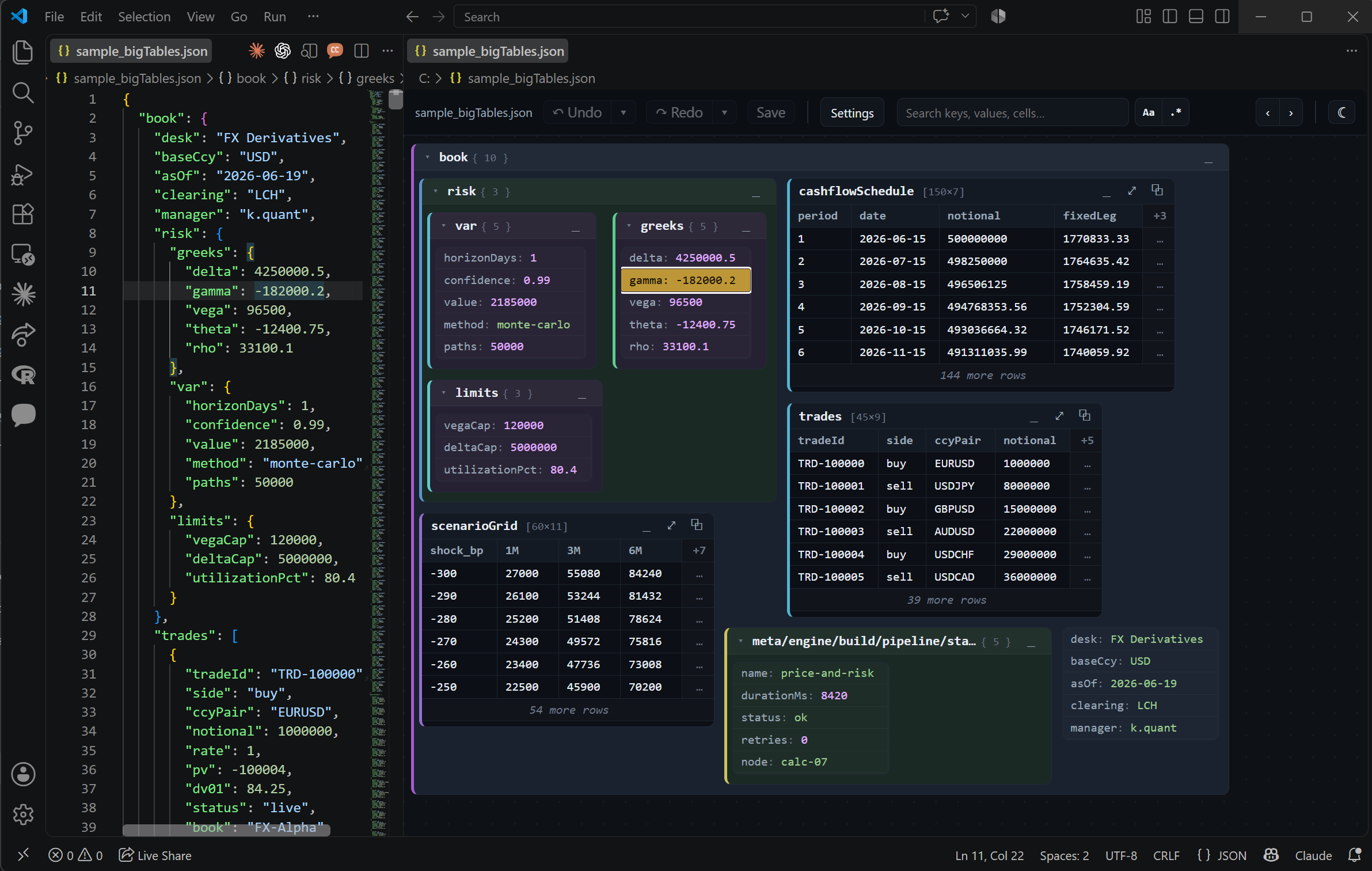
Keep the source open and add the viewer beside it — the equivalent of
VS Code's own Markdown: Open Preview to the Side: with a .json/.py/
.xml file open as text, press Ctrl+K V, use the preview icon at the
top-right of its editor tab, or Ctrl+Shift+P ->
Structile: Open Preview to the Side. The source stays where it is and
the viewer opens in the column beside it, with two-way sync between them.
Selection, collapse/fold, and edits stay in sync
With the source open beside the graph (Open Preview to the Side),
.json/.py/.csv/.tsv files always stay synced in both directions,
live; an interpreter-backed file syncs too whenever its interpreter opts in
(see Writing and distributing
interpreters — the bundled XML/HTML
interpreters do, except the deliberately non-syncing comparison
variants). An interpreter that doesn't opt in
leaves sync graph-only for that file, same as before this existed:
- Clicking a key/value in the graph selects and scrolls to the matching text in the real editor; placing the cursor or selecting text in the real editor highlights the matching node in the graph.
- Collapsing/expanding a dict or minimizing a table in the graph folds/unfolds the matching region in the real editor (VS Code's own code folding); folding/unfolding a region in the real editor collapses/expands the matching node in the graph. The real-editor -> graph direction only sees folds within the current viewport — a VS Code API limitation, not a bug.
- Renaming a key/name/column in the graph commits immediately and is mirrored straight into the real editor's buffer, live. Editing a value in the graph opens the familiar inline popup as an Edit-review session (original vs. your edit, with its own Save/Cancel) — it only reaches the real editor once actually saved. Typing directly in the real editor reaches the graph the other way: a moment after you stop typing, the graph rebuilds to match, keeping whatever's currently collapsed as-is, with dirty-dot markers for exactly what changed.
- Saving works from either side and finalizes both — Ctrl+S with focus in the real editor, or the graph's own Save button next to Undo/Redo (the standalone viewer's Save/Save As… buttons are hidden here, since this editor always saves through VS Code's native command).
Opening other file extensions
Only .json/.py/.xml are wired up out of the box. To open a
different extension with this viewer — say, a .cfg file that's
actually XML underneath — two settings work together, in your User or
Workspace settings.json (Ctrl+Shift+P -> Preferences: Open User
Settings (JSON)):
"workbench.editorAssociations": {
  "*.cfg": "structile.editor"
},
"structile.extensionFormats": {
  ".cfg": "xml"
}
The first (a built-in VS Code setting) tells VS Code which editor to open that glob pattern with; the second tells the extension itself which format that file actually is.
XML via an interpreter
XML isn't a fixed schema — the viewer needs a small caller-supplied JavaScript interpreter script to say what the tags and attributes in a given file actually mean. See Writing and distributing interpreters for the full guide; two ways to attach one to a file here, checked in order:
- A sibling file:
config.xml->config.interpreter.jsright next to it. Wins outright if present. - The
structile.interpretersetting, as a fallback — a single path or an array of candidates tried in order:
Set it at the User level (not Workspace) to apply across every
project you open, not just the one whose settings.json it's in — see
"Shipping interpreters for a whole team" below.
Neither present -> the file still opens, with a warning, and waits for one.
Shipping interpreters for a whole team
The structile.interpreter setting above already covers most of this:
set it once at the User level, in your own VS Code profile, and it
applies in every project you open from then on — nothing committed to
any repo, no extension to build. A wiki page with the interpreter .js
file attached and that JSON snippet to paste is the whole "distribution"
story for most teams. See
Writing and distributing interpreters
for the two heavier options past that point (a trusted-workspace-only
project folder, for a format that genuinely belongs to one repo; a VS
Code extension contribution, for an organisation that already ships
internal extensions), plus Structile: Show Interpreter Resolution and
Structile: List Contributed Interpreters for debugging which source
actually won.
Known limitations
- Only one viewer panel per document — opening the same file a second time refocuses the existing one.
- VS Code's own Ctrl+Z won't step through individual edits made inside the graph — use the graph's own Undo/Redo while focus is inside it.
- A graph edit mirrors into the real editor as a whole-document replace, not a targeted splice — expect its cursor position/scroll to jump on every graph-side edit.
structile.extensionFormatsdoesn't extend Open Preview to the Side's own keybinding/menu entries — those stay scoped to the built-in extensions above; use Reopen Editor With… for a custom-mapped one.