Standalone viewer
The core of Structile is one self-contained HTML file — no build step, no server, no dependencies. Anyone can open it directly in a browser and start working with structured data, with nothing else installed.
Get the file
structile-latest.html — download it
and double-click (or file:// it) to open. It starts empty; load data
from there. This is the same viewer the Python library
and VS Code extension both build on, packaged as a
single file for zero-install use — always the current release, refreshed
automatically whenever a new one ships. Need a previous version instead?
See Older versions.
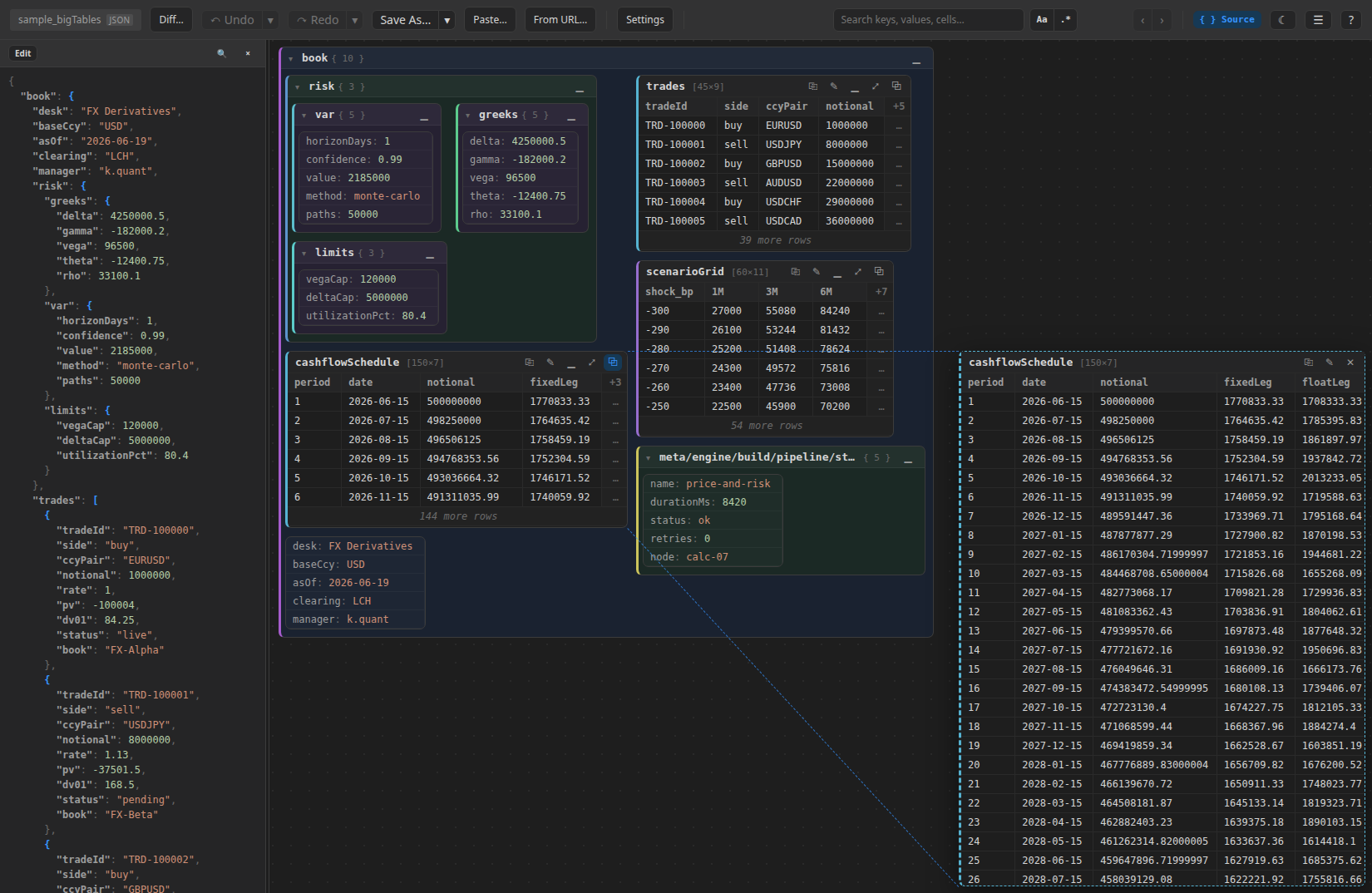
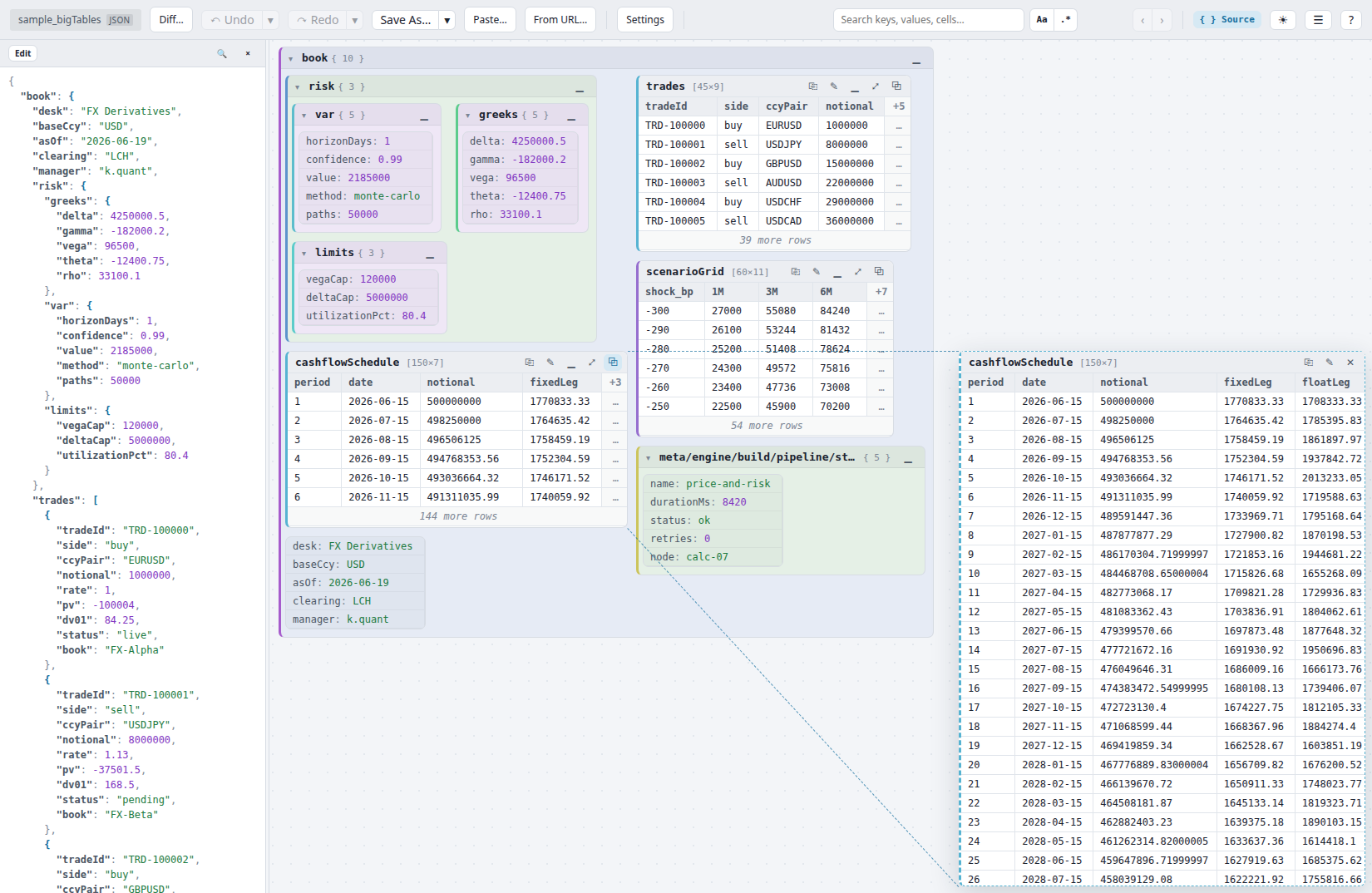 Click for live demo ↗
Hover for the other theme
Click for live demo ↗
Hover for the other theme
Loading data
- Load data… / drag-and-drop / paste a file or JSON text, or From
URL… (next to Paste…) / a
?url=<api>query param on the page's own address to fetch JSON (or Python-repr) text from a URL instead — see Bookmarklet below for the one-click version of this. - CSV / tab-separated text (
.csv,.tsv,.tab): just drop it — nothing else needed. See CSV and tab-separated text below. - XML (HTML included — it's just markup too), or any other text
format (INI/TOML/YAML/…): drop or paste the data together with a
companion interpreter
.jsfile that describes it — see Writing and distributing interpreters. Any other extension keeps loading as plain JSON/text, same as always.
Bookmarklet
For "I just followed a link and my browser is showing me a REST API's raw JSON response" — where downloading it and opening the viewer above is more steps than the moment deserves, and a browser extension isn't an option on a locked-down corporate machine. Drag this link to your bookmarks bar:
Click it while on a page showing raw JSON and it opens
structile-latest.html — an always-current
copy of the file above, refreshed on every release rather than pinned to
one version — with ?url=<the current page's address>, which fetches and
loads that URL on boot.
Try it: open bookmarklet-sample.json — that's now a page showing raw JSON — then click the bookmarklet. It should open the viewer with that data already loaded.
The catch: it's a real cross-origin fetch() from danieltuzes.pages.dev,
so it only works against an API that sends CORS headers allowing that
origin — most public REST APIs do, most internal/authenticated ones don't
(a browser restriction, not something this viewer can waive). When it
doesn't work, fall back to Paste…, which has no such restriction since
it just reads whatever's already rendered in your browser tab.
Don't want the bookmarklet depending on reaching this site at all (a
blocked external domain, or you'd rather not rely on someone else's
uptime)? Download
structile-latest.html and host that
copy on any http(s) server you control — an internal static host, your
own intranet — then edit the bookmarklet's v= assignment to point
at that address instead. Self-hosting on the same origin as the API
you're fetching from also sidesteps the CORS caveat entirely, since same-
origin requests aren't subject to it.
Working with the graph
{ } Source(top toolbar) shows the raw file text beside the graph. With it open, clicking a key/value in the graph selects and scrolls to the matching text in the source pane, and vice versa — always for JSON/Python-repr; for any interpreted format this depends on the interpreter (see Writing and distributing interpreters) — the interpreter can tag DOM nodes or raw-text character ranges. The bundled XML/HTML interpreters opt in, and CSV gets it built in.- Double-click a value to edit it in place; double-click a dict's
title (including a chain like
telemetry/exporter/otlp) to rename it. - A table cell can itself hold a dict or table — shown as a small
{n}/[n]symbol instead of raw JSON text; click it to open that value as a detached side panel, the same way a table's own ⧉ detach button does — works recursively too. Toggle it off in Settings -> Table windows to show raw JSON text instead (on by default). - Undo/redo (with a history dropdown), search (with regex/case options), and dirty-state dots track unsaved changes per field/ container.
- Save asks for a destination and writes a new data file via the File
System Access API where supported (with a filename prompt + download
fallback elsewhere), in whichever format the data was loaded as (JSON,
Python-repr, CSV/tab-separated, or XML via the interpreter's
serializeXML). It then opens the saved content in a clean viewer tab. - Every table has its own ⎘ menu: copy the complete table — not just the rows on screen — as CSV, Excel-friendly tab-separated text, JSON or Markdown, or download it as a CSV/Excel file. Export CSV… / Export Excel… in the Save menu do the same for a whole table-shaped document, whatever format it was loaded from.
- Settings (gear icon) controls the packing layout (column/row
counts, truncation widths, etc.) and can be saved/loaded as a
.settings.jsonfile; a full view (settings + which boxes are collapsed/expanded/detached) can be saved/loaded as a.view.jsonsidecar file.
Big integers (anything beyond JavaScript's ±2^53 safe range) are kept
exact end-to-end — parsing, editing, saving, and search all use the
original value, not a rounded display form.
CSV and tab-separated text
.csv, .tsv and .tab files open on their own — no interpreter, nothing
to pair. A header row plus uniform data rows become a table, true/false/
null and numbers are recognized as such, and quoted fields work as
RFC 4180 describes, including a quoted cell containing commas, quotes or
line breaks.
Which delimiter you have is read from the file's content, not its
extension, so a .csv that a spreadsheet exported with tabs opens
correctly too — and Save writes back the same dialect it read.
Editing a table as text
Every table's toolbar has an ✎ button next to ⎘ Copy. It opens a box, pre-filled with that table as CSV, where you can paste a table straight out of Excel (or type one) and press Process. The result arrives as ordinary edits: the viewer switches into its review diff, so every changed cell, added row and removed row is visible — and undoable, or cancellable — before anything is saved. Pasting back exactly what you copied changes nothing at all.
The box reads whatever you paste: comma- or tab-separated, with or without a header row (without one, your table's existing column order is used). If it can't read the paste, it says why and refuses to apply it rather than mangling the table.
Comparing two files
Diff… (appears once real data is loaded) compares two files right in
the browser — no install needed on either side. Click it and pick a file
for the other side, or drag two files onto the page at once (which one
lands on the left vs. right follows drop/selection order, shown in the
diff header); the two files don't even have to be the same format — a
.json against an .xml + interpreter starts a cross-format diff too.
Once open, ⇄ swaps sides, and clicking a Left:/Right: name
replaces just that side. The i badge next to Diff is an in-app
reference for the Split/Unified × Full/Compact/Ultracompact scopes.
Current limitations
- The drag-and-drop/paste/file-picker pairing UX recognizes a small,
fixed set of extensions beyond JSON/Python/CSV (
.xml/.html/.htm/.ini/.toml/.yaml/.yml) — a custom extension outside that list dropped directly onto the page falls back to plain JSON/text instead of offering interpreter pairing (the Python library and VS Code extension don't have this restriction, since they attach an interpreter explicitly rather than through drag-and-drop). - The paste textarea only recognizes XML-shaped raw text (no filename to infer a format from) — pairing any other format's data always goes through a file, never a paste.